


Ahoy there! So you're gearing up to set sail on your dream Disney Cruise vacation. Congratulations! As you're prepping for your trip, you might already have a checklist brewing in your mind — researching your ship, planning your ports of call, booking special experiences (like Lily's frog-favorite, the Royal Gathering) and sorting out travel details, among others. We know it might seem like a lot to juggle. But we're excited to share that there's a helpful app that will help make your travel plans go a whole lot smoother ... the Disney Cruise Line Navigator app has now entered the chat! This app is not only handy but will practically be your shipboard lifeline. In this guide, we're covering everything you need to know about the Disney Cruise Line app before you set sail and throughout your entire voyage.
FAQs
- Do I need the Disney Cruise Line app before my cruise? The Disney Cruise Line Navigator app is essential. You can use it to complete online check-in, select a Port Arrival Time, view onboard activities, manage plans and chat with your travel party once onboard.
- Does the Disney Cruise Line app work without internet on the ship? Yes. Once onboard, the app works using the ship’s free Wi-Fi. No internet package is needed to use the app to view schedules, menus, character meet-and-greets or the daily activities. You can purchase a Wi-Fi package in the app if you're planning on using the internet for email, social media, etc.
- Can I book activities and adults-only dining in the Disney Cruise Line app? Yes. You can use the Disney Cruise Line Navigator app to book onboard activities, adults-only dining, spa treatments and Port Adventures once your booking window opens.
- What can I see in the Disney Cruise Line Navigator app during the cruise? The app shows daily schedules, showtimes, dining menus, deck plans, kids club programming and real-time notifications throughout the cruise.

Disney Cruise Line App Overview
The Disney Cruise Line Navigator app is a helpful tool you'll use on your smartphone that will keep you organized and in the know while onboard. The app is available as a free download in either the App Store for iOS or Google Play for Android. We highly recommend getting a head start by downloading the app well before you reach the cruise terminal. This way, you can add your reservation and start managing your trip right away. Once your cruise balance is paid in full (and your Castaway Club membership booking window opens), you can start booking those magical extras such as specialty dining, nursery reservations, special character experiences and Port Adventures, just to name a few.
Once you step onboard, the app truly becomes your lifeline. You will rely on it throughout your entire cruise. Curious about the daily event schedule? Want to review your trip itinerary or craving a sneak peek at the evening's dining menu? All of that information and more is listed in the app. Disney Cruise Line no longer gives out Personal Navigators — a printout of all the events hoppening around the ship (although you can request a paper copy at Guest Services, subject to availability). Without the app, it would be nearly impossible to know everything that is going on around the ship, let alone plan and organize your day.
How to Add Your Reservation
The Disney Cruise Line Navigator app seamlessly integrates with the Disney Cruise Line website — you can use both platforms interchangeably. If you've ever traveled to Disney World or Disneyland, chances are you're already familiar with My Disney Experience or the Disneyland app — consider the Navigator app as the seafaring cousin. :)
So, first things first — let's get you set up!
- Create Your Profile: Begin by creating your Disney Cruise account either online at disneycruise.disney.go.com or within the app. Go ahead and knock one thing off your travel to-do list and download the app now. You'll thank your future self at the cruise terminal! From there, you'll create your profile. This will include details such as your name, mailing address and credit card information that you'll use to pay for any extras such as alcoholic beverages, adult-only dining and services. You'll also choose a Disney character as an avatar to represent each member of your party. Next, you'll set up your username and password. Make sure to pick something easy to remember, as you'll be asked for it whenever you log in online or in the app. If you've already created an account for My Disney Experience or Disneyland (or even Disney+), you can use the same credentials. You do not need to create a new account.
- Add Your Reservation: Now you can add your cruise reservation to your account. At the top of the Disney Cruise webpage, click on Already Booked and then My Reservations, where you'll input your cruise confirmation number, birthdate and last name. In the app, it will prompt you to add your reservation right away. Need to connect multiple staterooms? No problem! You can link up to three additional rooms for seamless planning.

The Disney Cruise Line Navigator app has two different interfaces: At Home and Onboard or at the Port. Unlike other Disney apps such as My Disney Experience and the Disneyland app, you are not able to explore and become familiar with all the features before you go. The Cruise Line Navigator app reserves certain functions exclusively for when you're physically onboard or at the port terminal. This means you can't access the Onboard functions until you are connected to the ship's Wi-Fi. The good news is that the app is pretty user-friendly, so you'll likely have no trouble finding the information you need. Plus, if you ever feel a bit froggy, the crew members onboard are happy to assist with any questions you might have.
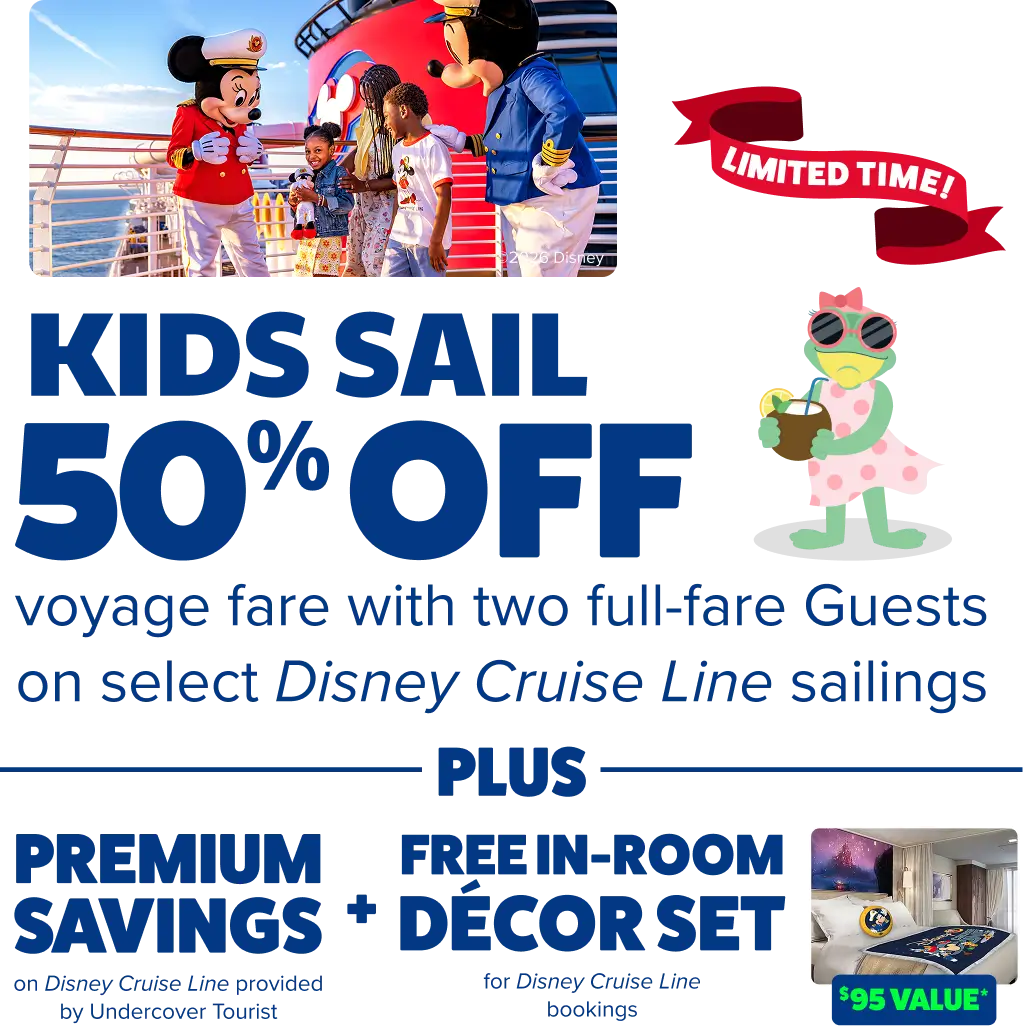
Limited-time Disney Cruise Line deal! Kids sail for 50% off on select Disney Cruise Line sailings from October 2026 to March 2027. PLUS, get a FREE in-room decor set, and premium savings on Disney Cruise Line sailings provided by Undercover Tourist! Lock in your Disney Cruise for as low as 10% down.
Disney Cruise Line Navigator App At Home Features

Now that you've created an account and added your reservation, it's time to leap into the At Home features. Whether on the Disney Cruise website or in the app, you can easily manage your travel preparations such as:
- Make payments on your cruise balance
- View and modify your stateroom (if applicable)
- Complete the My Online Check-in process (based on your Castaway Club membership level)
- Register for youth clubs during the online check-in process
- Explore and book onboard activities (based on your Castaway Club membership level)
- Add a travel protection plan
- Arrange ground transportation
- Adjust dining seating preferences
- Make special dietary requests
- Book nursery reservations (based on your Castaway Club membership level)
- View deck plans
One of our favorite features is the cruise vacation countdown — a daily countdown showing the days, hours, minutes and seconds until your trip. Plus, the Disney character faces make it extra fun.
Using the Disney Cruise Line Navigator App Onboard Features
Now for the really exciting part! Once you arrive at the cruise terminal or board the ship, you'll want to switch over to the Onboard mode. This is where you'll finally get to view all the stuff you've been itching to see, such as your Rotational Dining schedule, restaurant menus and the daily schedule of onboard activities.

How to Switch to Onboard Mode
To switch to the Onboard mode, you will need to connect to the ship's Disney Cruise Line Guest Wi-Fi.
- First, tap on Connect to DCL-Guest Network. Next, grant permissions on your device. For iOS, navigate to your phone's settings menu, scroll down to Disney Cruise, and enable Location and Local Network. For Android, go to settings, select Apps, find Disney Cruise Line, tap permissions and enable Location and Nearby Devices.
- Additional tips: For iOS users, ensure VPN and Private Relay are turned off in the General settings. For Android users, clear the cache from the Settings menu.
- Because you are now connected to the ship's Wi-Fi, you don't need to purchase an internet package to use the app. If you plan on using the internet for other tasks such as checking your email, sending text messages or using social media, you will want to purchase an internet package within the app or at Guest Services onboard the ship. There are a couple of options to choose from.
- Link Your Stateroom: Enter your birthdate, name and stateroom number to link your stateroom. This also sets up your user account for the Onboard Chat feature. Make sure everyone who has their own phone downloads the app (before boarding) and also links to the stateroom. Each person's phone will create its own unique chat ID. This allows everyone to text one another in the Onboard Chat.
Disney Cruise App Home Screen
When you first open the app, you'll find the main navigation menu at the bottom of your screen. Each icon lights up in color to indicate which menu area you're in. Here's a quick rundown:
- Home: This is where you'll see a short list of your upcoming plans. These are the plans that you've either reserved in advance or "hearted" from the activity schedule. You can also view the ship's daily itinerary from here.
- Explore: Here is where you can find all the ship's events and activities. Once you tap on Explore, you'll see a slider menu that lists the upcoming events by category, such as Character Greetings, Youth Clubs and even Guest Services.
- Add Plans: When you want to reserve activities, tap on the plus sign to pull up the menu here.
- My Plans: This is where you can view the full scope of your scheduled plans for your entire trip.
- More: Additional details, such as your account balance and muster drill information, can be found here.

OnBoard Activities
One of the easiest ways to view the ship's schedule of activities is to tap the Explore tab from the bottom navigation menu. This allows you to see the list of activities for the current day, or click the date to switch to see the activities scheduled for another day of your trip.
Up at the top of the screen, you'll find a slider menu. Here you can slide and view different types of activities. The slider options include: Daily Activities, Character Greetings, Dining & Lounges, Spa & Salon, Youth Clubs, Pools, Sports & Recreation, Shopping, Live Shows & Movies and Guest Services. For example, if you wanted to know when and where Mickey Mouse will be meeting, you'd tap on Character Greetings in the slider menu. You can also filter activities based on age range or activity type.
The My Plans menu section provides an overview of your daily plans. This is where you can find your dining rotation schedule and table number. If you've reserved any specialty dining, beverage tastings or Port Adventures, you'll see them listed here as well.
To add activities to My Plans, simply tap the heart icon on that specific event in the Explore tab. You can remove items from My Plans by tapping on the heart again. If you have notifications turned on, you'll receive alerts reminding you of upcoming plans.
Dining Information
To locate dining info, navigate to the Explore tab and tap the Dining & Lounges slide for your dining time and schedule. You can also see which Rotational Dining venue offers breakfast and lunch that day and view buffet service hours. If you're looking for specific menus, you will simply click on any restaurant to access its menu.

Onboard Chat
The Onboard Chat is one of the most valuable features of the entire app (especially for our froggy family of four!). This messaging feature is essentially a way to text your travel party even in the middle of the ocean. Oh, and don't mind me spamming the fam with the Disney Character emojis while having coffee at Cove Cafe! I don't know what's worse, this or my dad jokes.
If your tadpoles will be visiting the nursery or youth clubs, this is also how the youth counselors will communicate with you via automated messages.
If your family members want to split up, this feature allows you to stay in touch. Everyone in your party will be shown in your chat list. (Remember how you all linked to the stateroom?) However, if you want to chat with someone not linked to your stateroom, you will need to ask them for their name and chat ID and enter it into the app.
Be sure to allow notifications from the app so that you'll receive alerts when someone messages you. We noticed that sometimes the notifications didn't always work properly or as quickly as we'd like.
When Mommy Frog and I would send a message to Tad, he wouldn't always receive an alert, yet he could see that we sent him a message if he checked. Because of this, you'll want to get into the habit of frequently checking your messages and reminding your party, especially your tweens and teens, to do the same.
Emergency Contact Information
Tapping on Today’s Itinerary will pull up both the All Ahsore and All Aboard times. You'll also want to note the Emergency Contacts and Ship's Agent details. If you have plans to hop off the ship for a Port Adventure or to do a little exploring, be sure to have this information saved somewhere.
Taking a screenshot of the Contact Information before going ashore will ensure you'll have this information handy regardless of internet availability.
And that wraps up the basic ins and outs of the Disney Cruise Line Navigator app. If this guide has been helpful to you, don't hesitate to save it for future reference as you continue planning your cruise vacation. Still have questions? Feel free to drop them in the comments below. We're here to help and love answering any questions you might have. Bon voyage!
Related: Our Top 10 Tips for Your First Disney Cruise
Keep hopping!